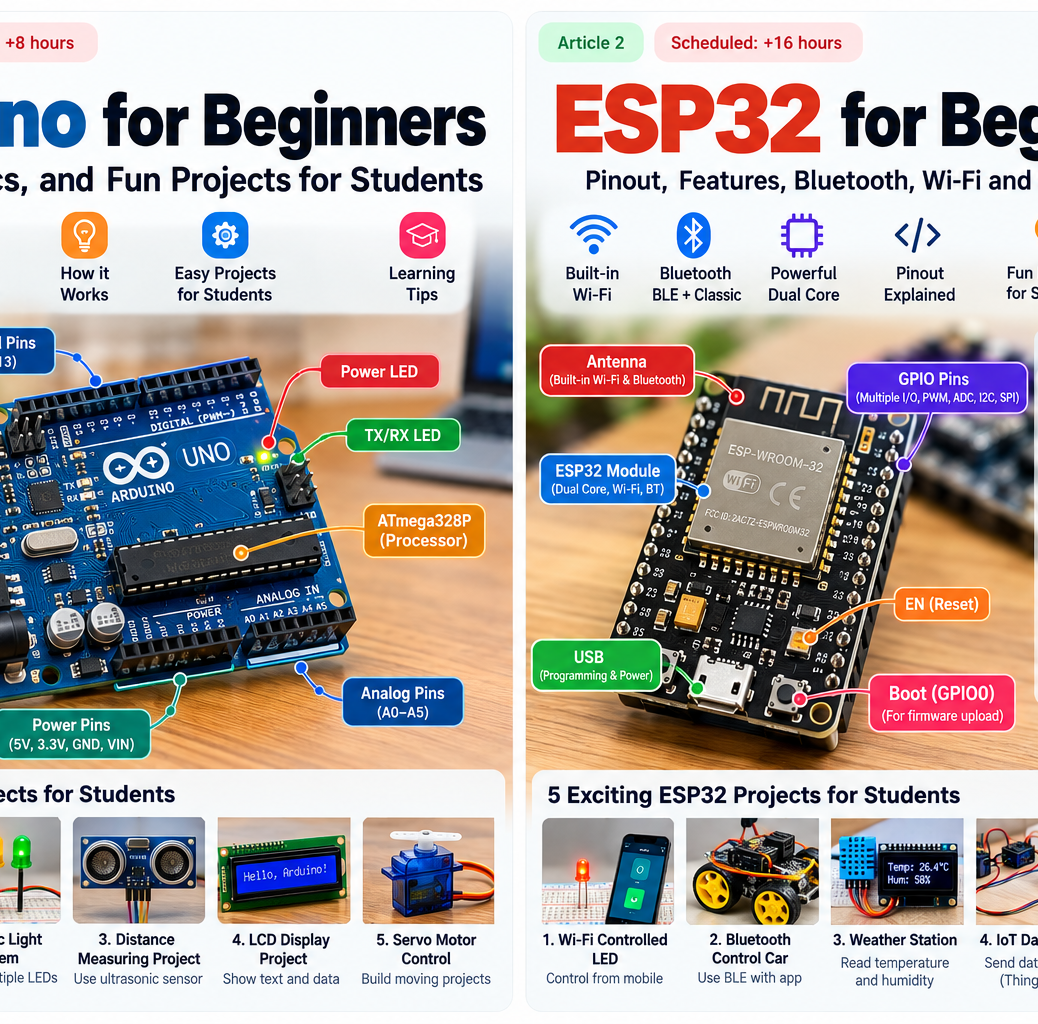
New to electronics? This illustrated CircuitMagic guide introduces the Arduino Uno Rev3, explains the most important pins and teaches students how to turn simple circuits into practical science-fair projects.
What is Arduino?
Arduino is an open-source electronics platform combining programmable microcontroller boards and beginner-friendly software. An Arduino Uno Rev3 uses an 8-bit ATmega328P microcontroller. You write a sketch (usually C/C++) in Arduino IDE, upload it via USB, and the microcontroller repeatedly runs your instructions—even after disconnecting the computer if supplied with suitable power.
Arduino Uno Rev3: hardware at a glance
- ATmega328P microcontroller running at 16 MHz.
- 14 digital I/O pins labeled D0–D13. Six of them support PWM output: D3, D5, D6, D9, D10 and D11.
- Six analog input pins A0–A5 with 10-bit ADC resolution.
- USB port for programming and power, barrel power jack, reset button and onboard LED connected to D13.
- 5V logic on Uno Rev3; many 3.3V sensors/modules need appropriate voltage and level shifting.
- I2C on A4 (SDA) and A5 (SCL); SPI on D10–D13 or the ICSP header; UART serial on D0 (RX) and D1 (TX).
Understanding the Arduino Uno pinout
Digital pins D0–D13
Use these for buttons, LEDs, digital sensors and control signals. D0/D1 are also used for the USB serial connection, so avoid attaching conflicting devices there while uploading or debugging. D13 powers the built-in L LED through the board circuitry.
Analog pins A0–A5
Read varying voltages from sensors such as potentiometers and light sensors using analogRead(). On the Uno Rev3, the default analog input range is 0–5 V and readings range from 0 to 1023. Never apply more than the board’s safe voltage.
PWM pins marked ~
Use analogWrite() on D3, D5, D6, D9, D10 and D11 for approximate brightness or speed control. These are digital PWM signals, not true analog output voltages.
Power and communication pins
5V and 3.3V supply pins provide regulated outputs within the board’s limits; GND is common ground. VIN accepts an appropriate unregulated external input on supported boards. For the Uno Rev3, the recommended external supply is 7–12V through VIN/barrel jack, although USB 5V is easiest for beginners. SDA/SCL enable I2C sensors and displays. Do not connect motors directly to GPIO pins: use a motor driver and separate supply.
What do students need?
- Arduino Uno Rev3 or compatible board, USB cable and a computer with Arduino IDE.
- Breadboard, jumper wires, resistors (220–330Ω for typical LEDs), LEDs and pushbuttons.
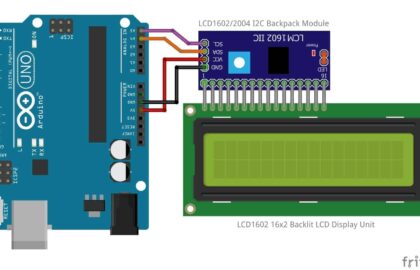
- Optional HC-SR04 ultrasonic sensor, photoresistor, servo, 16×2 I2C LCD, temperature sensor and motor-driver kit.
Getting started with Arduino IDE
- Install Arduino IDE from arduino.cc.
- Connect the Uno to your computer via USB.
- Choose Arduino Uno under Tools → Board and the correct serial port under Tools → Port.
- Paste the blink sketch below, click Verify, then Upload.
- Observe the onboard L LED flashing once per second.
Your first Arduino program: blink the onboard LED
const int ledPin = LED_BUILTIN;
void setup() {
  pinMode(ledPin, OUTPUT);
}
void loop() {
  digitalWrite(ledPin, HIGH);
  delay(1000);
  digitalWrite(ledPin, LOW);
  delay(1000);
}
Try changing both delays from 1000 to 200 milliseconds. This teaches digital output, setup/loop structure, and timing.
Second experiment: read a pushbutton
Wire a pushbutton between D2 and GND. The internal pull-up resistor avoids needing an external resistor for this input.
const int buttonPin = 2;
void setup() {
  Serial.begin(9600);
  pinMode(buttonPin, INPUT_PULLUP);
}
void loop() {
  bool pressed = digitalRead(buttonPin) == LOW;
  Serial.println(pressed ? "PRESSED" : "RELEASED");
  delay(100);
}
Open the Serial Monitor at 9600 baud to see the button status. This explains active-low input and UART debugging.
10 Arduino projects students can make
- Blinking LED: learn output, polarity, resistance and timing.
- Traffic-light model: sequence red, yellow and green LEDs with timed transitions.
- Ultrasonic distance meter: display approximate distance from an HC-SR04 sensor; practice measurement and unit conversion.
- Automatic night lamp: read an LDR through a voltage divider and switch on an LED when dark.
- 16×2 LCD display: show greetings, sensor values and live counters.
- Servo-controlled gate: move a small servo between two angles, with adequate external power.
- Temperature monitor: read a compatible temperature sensor and print results to Serial Monitor.
- Digital reaction-time game: combine LEDs, a button and the
millis()function. - Smart plant monitor: use a moisture sensor to alert when soil is dry; prefer capacitive sensors for longer life.
- Obstacle-avoiding mini robot: combine a distance sensor, chassis and motor driver.
How to choose a first project
Start with one LED and one input, then add a sensor, then a display or motor. Document the components, wiring diagram, sketch, observations and lessons learned. A good school project explains not just what worked but why it worked.
Arduino vs ESP32: which should students pick?
The Uno Rev3 is especially approachable for basic electronics and 5V interfacing. ESP32 development boards offer more processing power and built-in Wi-Fi/Bluetooth for connected projects, but use 3.3V GPIO. Read our companion ESP32 guide for the next step.
Safety, helpful resources and next steps
Disconnect power before changing wiring. Check component polarity and common ground, do not power high-current loads directly from GPIO, and verify board-specific pins before connecting 5V signals to 3.3V components. Explore the official Arduino Uno Rev3 documentation and pinout. To add wireless control using an external Bluetooth module, see the CircuitMagic BLE Controller tutorial.
What would you build first? Share your Arduino science-fair idea in the comments.