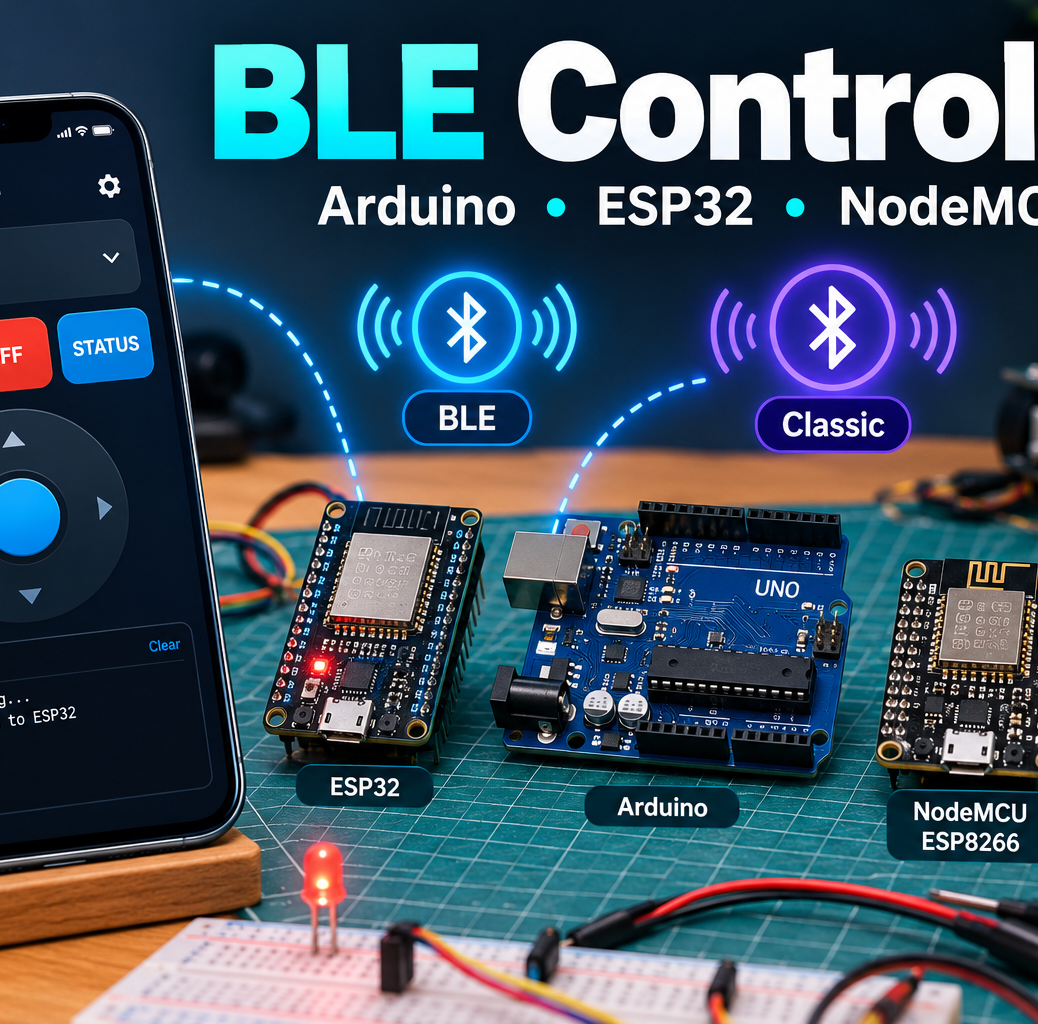
Turn your phone into a programmable Bluetooth remote and serial monitor for robots, LEDs and DIY electronics. This step-by-step guide covers Bluetooth Low Energy (BLE) and Bluetooth Classic SPP, including working test sketches and hardware requirements.
Download: BLE Controller on Google Play (Android) · BLE Controller on the App Store (iPhone/iPad). For a general introduction see our earlier overview.
What can BLE Controller do?
- Scan for and connect to compatible Bluetooth peripherals.
- Send user-defined text commands with customizable Remote buttons.
- Use the Joystick interface for robot-style controls (you must match its transmitted command format in your firmware).
- Send and monitor serial data in the Console, including incoming device messages.
- See connection status and signal strength; adjust app settings and Bluetooth mode.
Important: BLE versus Classic Bluetooth
BLE uses GATT services and writable/notifiable characteristics. It works with both Android and iOS in this app. Classic SPP uses a serial Bluetooth link and is supported by the app on Android only; iOS cannot use the HC-05/HC-06 Classic SPP examples. Select the matching mode in the app before scanning.
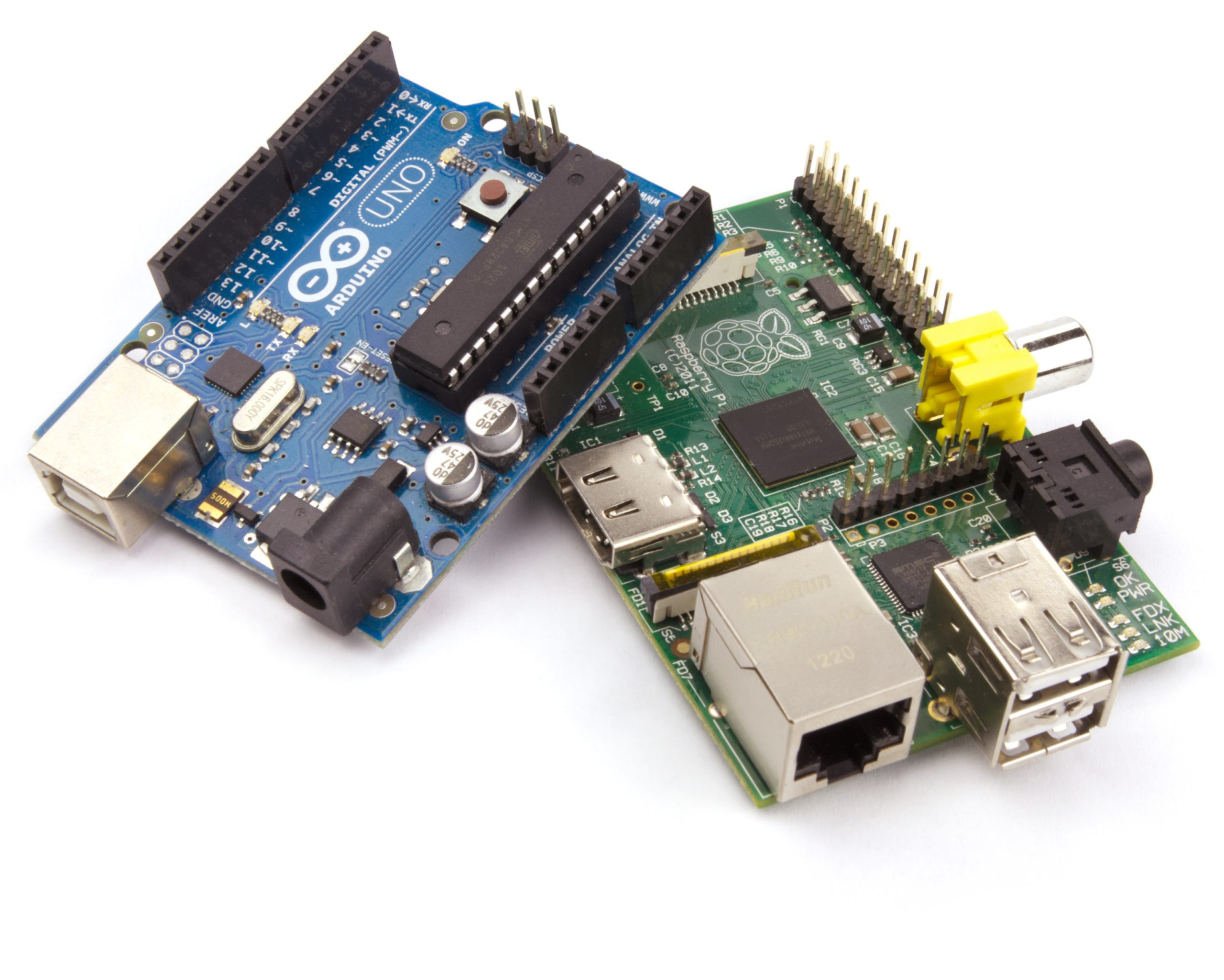
Original ESP32 boards such as ESP32-WROOM-32 support both BLE and Classic SPP. ESP32-C3 and ESP32-S3 support BLE, not Classic SPP. Arduino Uno/Nano and ESP8266 NodeMCU have no built-in Bluetooth radio: attach the appropriate module. HC-05/HC-06 are Classic modules; HM-10-like modules are BLE but their service/characteristic UUIDs and firmware behavior vary.
Command format used in every LED test
- Send
1to turn the example LED on. - Send
0to turn it off. - Send
?to request the LED state. - The firmware replies
LED ONorLED OFFover the matching Bluetooth link.
Create three Remote buttons named ON, OFF and STATUS with command strings 1, 0 and ?. Send those exact characters without adding extra formatting. These simple examples process each received character, so extra line endings are harmless.
Example 1: ESP32 BLE (iPhone and Android)
Use an ESP32 board with BLE support and the ESP32 board package in Arduino IDE. The following sketch exposes a Nordic-UART-style GATT service: 6E400001 service, 6E400002 write/RX characteristic, and 6E400003 notify/TX characteristic (full 128-bit UUIDs are in the code). The app searches for writable BLE characteristics, so the RX characteristic accepts text commands.
#include <BLEDevice.h>
#include <BLEServer.h>
#include <BLEUtils.h>
#include <BLE2902.h>
const int LED_PIN = 2;
#define UART_SERVICE "6E400001-B5A3-F393-E0A9-E50E24DCCA9E"
#define UART_RX      "6E400002-B5A3-F393-E0A9-E50E24DCCA9E"
#define UART_TX      "6E400003-B5A3-F393-E0A9-E50E24DCCA9E"
BLECharacteristic *txChar;
class RxCallbacks : public BLECharacteristicCallbacks {
  void onWrite(BLECharacteristic *ch) override {
    String value = ch->getValue();
    for (size_t i=0; i<value.length(); ++i) {
      char c=value[i];
      if (c=='1') digitalWrite(LED_PIN, HIGH);
      if (c=='0') digitalWrite(LED_PIN, LOW);
      if (c=='1' || c=='0' || c=='?') {
        String reply=digitalRead(LED_PIN)?"LED ON":"LED OFF";
        txChar->setValue(reply.c_str());
        txChar->notify();
        Serial.println(reply);
      }
    }
  }
};
void setup() {
  Serial.begin(115200);
  pinMode(LED_PIN, OUTPUT);
  BLEDevice::init("CircuitMagic-ESP32-BLE");
  BLEServer *server=BLEDevice::createServer();
  BLEService *uart=server->createService(UART_SERVICE);
  txChar=uart->createCharacteristic(
    UART_TX, BLECharacteristic::PROPERTY_NOTIFY | BLECharacteristic::PROPERTY_READ);
  txChar->addDescriptor(new BLE2902());
  BLECharacteristic *rx=uart->createCharacteristic(
    UART_RX, BLECharacteristic::PROPERTY_WRITE | BLECharacteristic::PROPERTY_WRITE_NR);
  rx->setCallbacks(new RxCallbacks());
  uart->start();
  BLEAdvertising *adv=BLEDevice::getAdvertising();
  adv->addServiceUUID(UART_SERVICE);
  adv->start();
  Serial.println("BLE UART advertising");
}
void loop() { delay(20); }
Upload the sketch, open Serial Monitor at 115200, choose BLE mode in the app, scan for CircuitMagic-ESP32-BLE, connect, and send 1, 0, or ?. Pin 2 is an example only; many ESP32 boards do not have an LED on that pin. For reliable testing connect an external LED with a series resistor or change the pin. Arduino ESP32 core versions differ; if BLE2902.h is unavailable, use a compatible ESP32 core/library version or adapt the notification descriptor.
Example 2: ESP32 Classic SPP (Android only)
This sketch uses the original ESP32’s BluetoothSerial library. It is not a BLE sketch. Do not use it on ESP32-C3/S3, or with the iOS app.
#include <BluetoothSerial.h>
BluetoothSerial SerialBT;
const int LED_PIN = 2;  // Change for your board
void handle(char c) {
  if (c == '1') digitalWrite(LED_PIN, HIGH);
  if (c == '0') digitalWrite(LED_PIN, LOW);
  if (c == '1' || c == '0' || c == '?')
    SerialBT.println(digitalRead(LED_PIN) ? "LED ON" : "LED OFF");
}
void setup() {
  pinMode(LED_PIN, OUTPUT);
  Serial.begin(115200);
  SerialBT.begin("CircuitMagic-ESP32-Classic");
}
void loop() {
  while (SerialBT.available()) {
    char c = (char)SerialBT.read();
    handle(c);
    Serial.write(c);
  }
}
Choose Classic mode on Android, pair the device if Android requests it, connect to CircuitMagic-ESP32-Classic, and send test commands. Use the same LED pin caveat as above.
Example 3: Arduino Uno/Nano + HC-05 or HC-06 (Classic, Android)
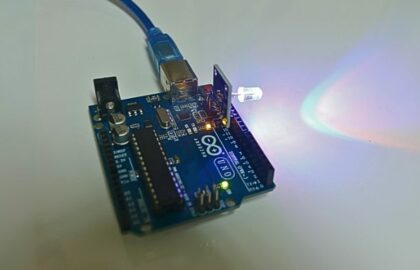
You need an Uno or classic Nano, HC-05/HC-06 Bluetooth module, jumper wires and an LED (or use pin 13’s on-board LED). Connect module TXD to Arduino D10. Connect Arduino D11 to module RXD through a suitable 5V-to-3.3V level shifter or voltage divider; common breakout boards often accept 5V on VCC but their UART RX pin may not be 5V tolerant. Connect grounds together. Follow the voltage specifications of your exact module.
#include <SoftwareSerial.h>
// Uno/Nano: HC-05 TXD -> D10; D11 -> divider -> HC-05 RXD
SoftwareSerial BT(10, 11); // RX, TX
const int LED_PIN=13;
void setup() {
  pinMode(LED_PIN, OUTPUT);
  Serial.begin(9600);
  BT.begin(9600); // Common HC-05 data-mode baud; verify yours
}
void loop() {
  while(BT.available()) {
    char c=(char)BT.read();
    if(c=='1') digitalWrite(LED_PIN,HIGH);
    if(c=='0') digitalWrite(LED_PIN,LOW);
    if(c=='1'||c=='0'||c=='?')
      BT.println(digitalRead(LED_PIN)?"LED ON":"LED OFF");
    Serial.write(c);
  }
}
Upload with the module wired to D10/D11, power it, pair the HC-05/HC-06 in Android Bluetooth settings when required, choose Classic mode in BLE Controller and connect. The example assumes 9600 baud in normal data mode; some modules are configured differently. If pairing or serial data fails, check the module’s actual baud rate and pairing PIN.
Example 4: ESP8266 NodeMCU + external Bluetooth module
ESP8266 NodeMCU does not have built-in Bluetooth. This example uses an HC-05/HC-06 in Classic SPP mode, so it is for the Android app. Connect HC-05 TXD to NodeMCU D5 (GPIO14), HC-05 RXD to NodeMCU D6 (GPIO12), share GND, and power the module according to its breakout specifications. Both UART GPIOs here operate at 3.3V. Connect an external LED and resistor to D2 (GPIO4) and GND.
#include <SoftwareSerial.h>
// ESP8266 NodeMCU: D5(GPIO14) is RX, D6(GPIO12) is TX
SoftwareSerial BT(D5, D6); // RX, TX
const int LED_PIN = D2;    // External LED + resistor to GND
void setup() {
  pinMode(LED_PIN, OUTPUT);
  Serial.begin(115200);
  BT.begin(9600);          // Set to module's UART baud
}
void loop() {
  while(BT.available()) {
    char c=(char)BT.read();
    if(c=='1') digitalWrite(LED_PIN,HIGH);
    if(c=='0') digitalWrite(LED_PIN,LOW);
    if(c=='1'||c=='0'||c=='?')
      BT.println(digitalRead(LED_PIN)?"LED ON":"LED OFF");
    Serial.write(c);
  }
}
Choose Classic mode and connect on Android. For iPhone/Android BLE with an ESP8266, use a separate BLE UART module such as a suitably configured HM-10 or an ESP32 bridge instead. An HM-10’s GATT UUIDs are often not Nordic UART UUIDs, and some clones implement different behavior; verify the module’s advertised characteristics and test writing/notifications before assuming compatibility.
How to connect from the app
- Install BLE Controller using the store link above.
- Power the microcontroller and open the correct Arduino sketch’s Serial Monitor if available.
- On Android, select BLE or Classic Bluetooth as appropriate. On iPhone/iPad use BLE.
- Allow the Bluetooth permissions requested by your phone.
- Open device scanning, select the advertised module name, and connect.
- Open Remote to configure buttons, or use Console to send
1,0and?. - Watch the LED and incoming response. If a connection succeeds but sending is unavailable, check that the BLE peripheral exposes a writable characteristic.
Troubleshooting
- Device not appearing: check board power, advertising, Bluetooth permissions and mode (BLE vs Classic).
- HC-05 missing on iPhone: expected; Classic SPP is Android-only. Use an ESP32 BLE sketch or a compatible BLE module instead.
- Connected but buttons do nothing: make sure the device actually offers a writable BLE characteristic, and check exact command strings and pins.
- Serial works but no LED: verify physical LED wiring and the chosen
LED_PIN. - No incoming message: the device must expose a notifying BLE characteristic and the app must subscribe successfully, or use an active Classic serial connection.
- NodeMCU not appearing: the ESP8266 itself has no Bluetooth; verify the external module, UART wiring and module power.
Build something next
Once the LED test works, replace the LED action with a relay, motor driver, servo controller, sensor reading or robot movement command. Use proper power supplies and motor-driver protection rather than driving motors directly from microcontroller pins.
Get BLE Controller: Android / Google Play | iPhone and iPad / App Store. Share your board, Bluetooth module and project in the comments!