Want to try a small electronics project without complicated circuits? In this beginner tutorial, we’ll build read temperature and humidity using esp32 and dht11 sensor. You’ll connect one sensor, upload a short Arduino IDE sketch, and see the result. No Wi-Fi account or cloud service is required.
What does it do?
The DHT11 gives digital temperature and relative-humidity measurements. It is inexpensive but less accurate than higher-end sensors; use it to learn sensor reading, not for critical monitoring.
Parts you’ll need
ESP32 development board, DHT11 module (3-pin breakout), jumper wires, USB cable. You will also need a computer with the free Arduino IDE installed.
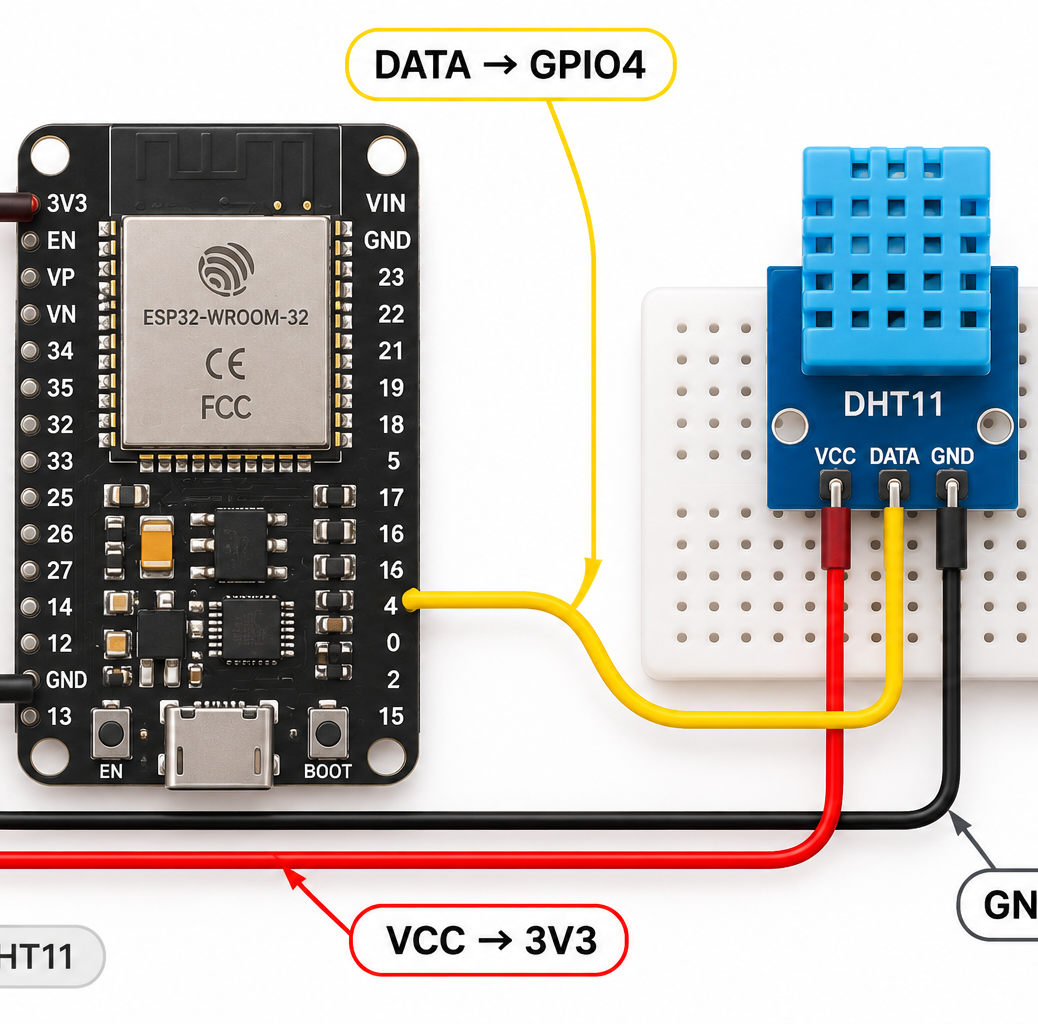
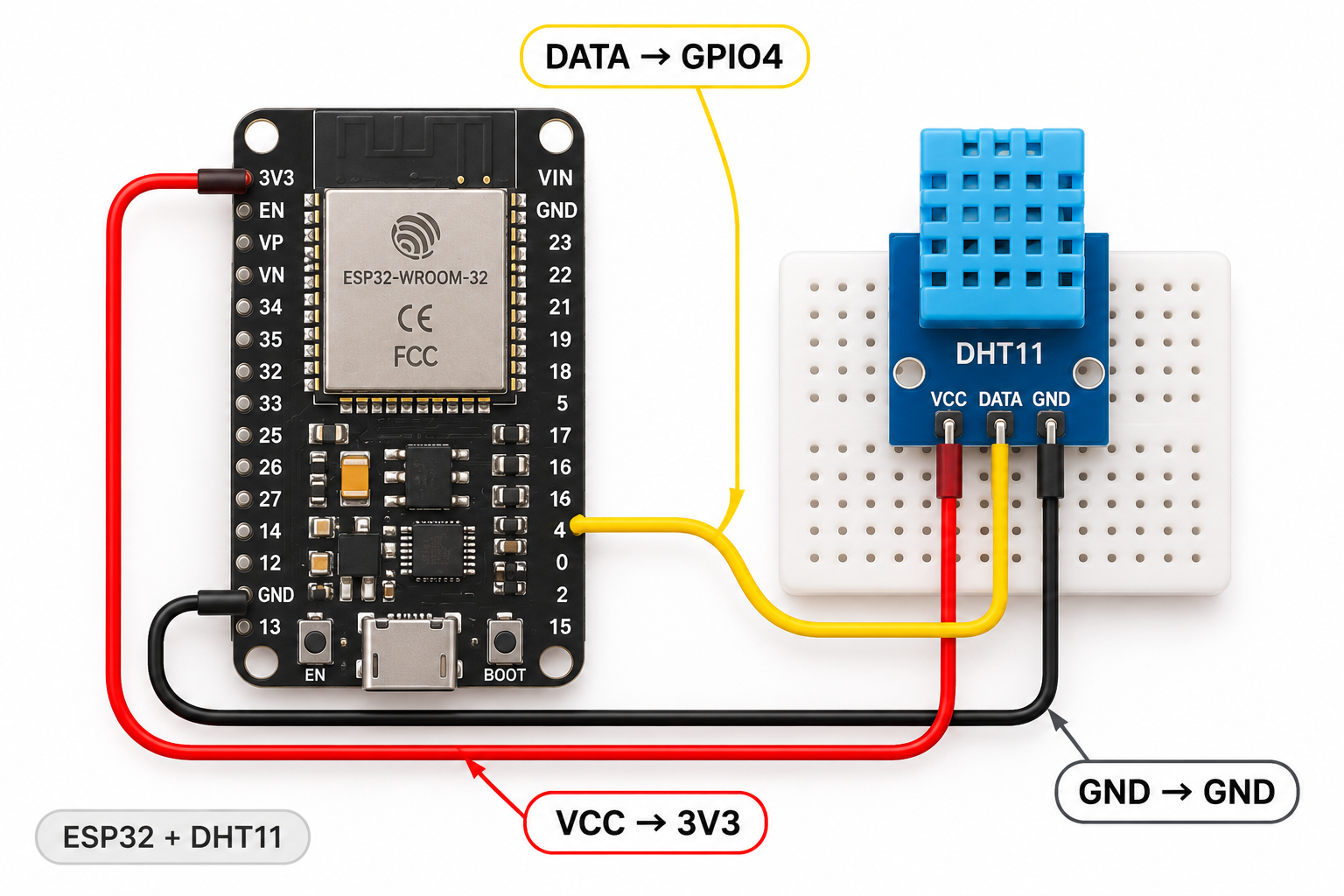
Wiring connections
Disconnect USB power before moving any wires. Make these connections carefully:
| Sensor / component pin | Connect to |
|---|---|
| VCC | +3.3V |
| GND | GND |
| DATA | GPIO 4 |
Important: ESP32 GPIO pins work at 3.3V. Do not connect a 5V output directly to an ESP32 input. Board and sensor-module pin labels vary, so double-check the markings on your hardware.
Arduino IDE code
Select the correct board and USB port in Arduino IDE, paste the complete sketch below, and click Upload.
#include <DHT.h>
#define DHTPIN 4
#define DHTTYPE DHT11
DHT dht(DHTPIN, DHTTYPE);
void setup() {
  Serial.begin(115200);
  dht.begin();
}
void loop() {
  float humidity = dht.readHumidity();
  float tempC = dht.readTemperature();
  if (isnan(humidity) || isnan(tempC)) {
    Serial.println("DHT11 read failed");
  } else {
    Serial.printf("Temperature: %.1f C | Humidity: %.1f %%\n", tempC, humidity);
  }
  delay(2000);
}
Expected result
Temperature: 23.0 C | Humidity: 45.0 % Open Tools → Serial Monitor and set the baud rate shown in Serial.begin() in the sketch.
Troubleshooting
Install ‘DHT sensor library’ by Adafruit and ‘Adafruit Unified Sensor’ in Arduino IDE. A bare 4-pin DHT11 needs a data pull-up resistor; this example assumes a 3-pin module.
If nothing appears, first check the USB cable, correct board and port, sensor power and ground, and the Serial Monitor baud rate. Recheck every wire against the connection table before changing code.
What to try next
Once this simple example works, try changing the measurement interval or using the sensor reading to control an LED. This is an easy way to learn inputs, outputs, and basic programming.
For more hands-on electronics tutorials, explore CircuitMagic. If you later want to control Arduino or ESP32 projects from a phone over Bluetooth, see our BLE Controller app tutorial. This project itself does not need Bluetooth.