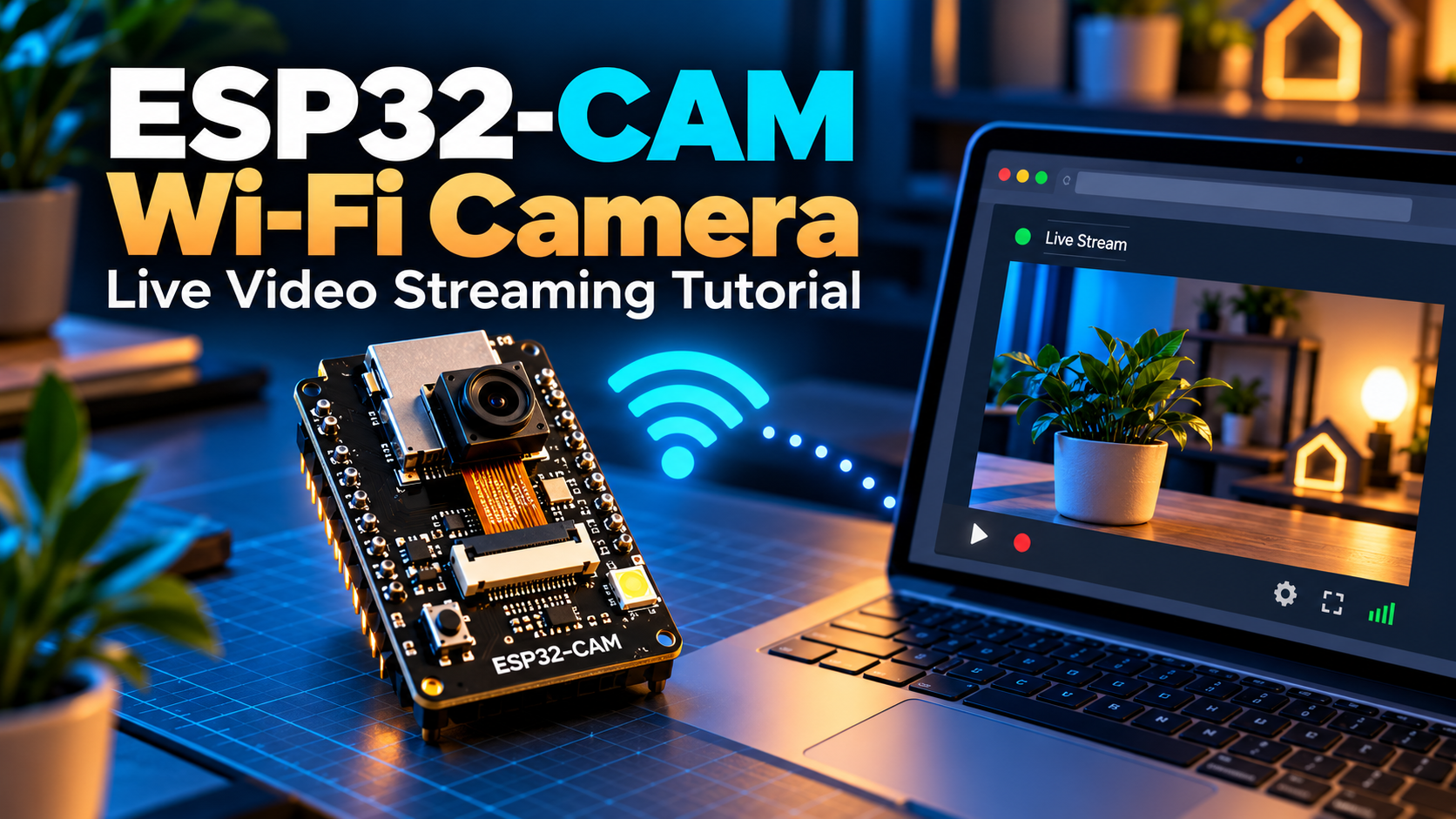
The ESP32-CAM is a tiny development board with a camera and Wi-Fi. With a few steps, you can view its live picture in a browser on your local network. This tutorial uses the official camera web-server example rather than asking you to paste a large, outdated sketch.
Parts you’ll need
- AI Thinker-style ESP32-CAM module with compatible OV2640 camera
- Stable 5 V USB-to-serial programmer capable of providing sufficient current, or an ESP32-CAM-MB programmer
- USB cable and jumper wires (only if using a serial adapter)
- 2.4 GHz Wi-Fi network and phone or laptop
How the system works
The ESP32-CAM connects to your Wi-Fi and runs a small web server. Your phone opens the camera page by visiting its local IP address. Video quality and frame rate depend on wireless signal, camera settings, available memory, and power.
Programming connections
- For typical AI Thinker ESP32-CAM boards using a USB-to-UART adapter: camera U0R → adapter TX, U0T → adapter RX, GND → GND
- Supply the camera board through its labelled 5 V input from a suitable regulated supply; do not feed 5 V into a 3.3 V-only pin.
- Pull GPIO0 to GND during flashing, then remove the connection and reset to run the program.
- Use 3.3 V UART signal levels. Some adapter and board layouts differ, so check their printed pin labels and the manufacturer’s schematic.
An ESP32-CAM-MB USB programming board simplifies wiring and boot-mode selection.
Upload the camera example
- Install the Espressif ESP32 board package in Arduino IDE.
- Open File → Examples → ESP32 → Camera → CameraWebServer (example location can vary by core version).
- Select the camera model for your actual board, often CAMERA_MODEL_AI_THINKER; in some versions this is in board_config.h.
- Enter your 2.4 GHz Wi-Fi SSID and password, select the correct board and port, and upload.
- After resetting, open Serial Monitor at 115200 baud and find the IP address.
- Enter http://YOUR_CAMERA_IP/ in a browser and click Start Stream.
Why use the maintained example?
Camera pin assignments, PSRAM handling, driver APIs and board configurations can change between ESP32 Arduino core versions. The packaged CameraWebServer example includes the relevant files for your installed core and is easier to keep working than a copied one-file sketch.
Test and troubleshoot
- Brownout or resets: use a stable 5 V power source with enough current.
- Camera init failed: choose the correct camera model, reseat the ribbon cable with power removed, and check PSRAM support.
- Black image: confirm camera orientation, ribbon connection and sensor support.
- Stream freezes: lower resolution and frame rate, improve 2.4 GHz Wi-Fi reception.
- No IP shown: recheck credentials and make sure your Wi-Fi network is compatible.
Privacy and security
This example is for an authorized camera on a trusted local network. Do not point it at people without consent, expose the unauthenticated camera server to the internet, or forward its port from your router. For remote access, prefer an authenticated VPN or a properly secured camera service.
Can BLE Controller stream the video?
No. The BLE Controller app is designed for Bluetooth command and serial communication, not Wi-Fi video streaming. You can build a separate BLE control channel for camera accessories on supported ESP32 hardware, but the actual video stream runs over Wi-Fi.
Next ideas
Try snapshots, local motion detection, an enclosure, or storing images to microSD. If you run into a camera initialization problem, share your board type and Serial Monitor output in the comments.