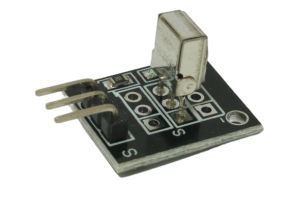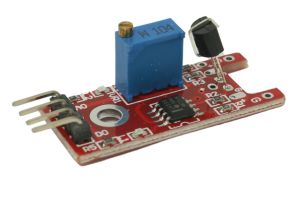
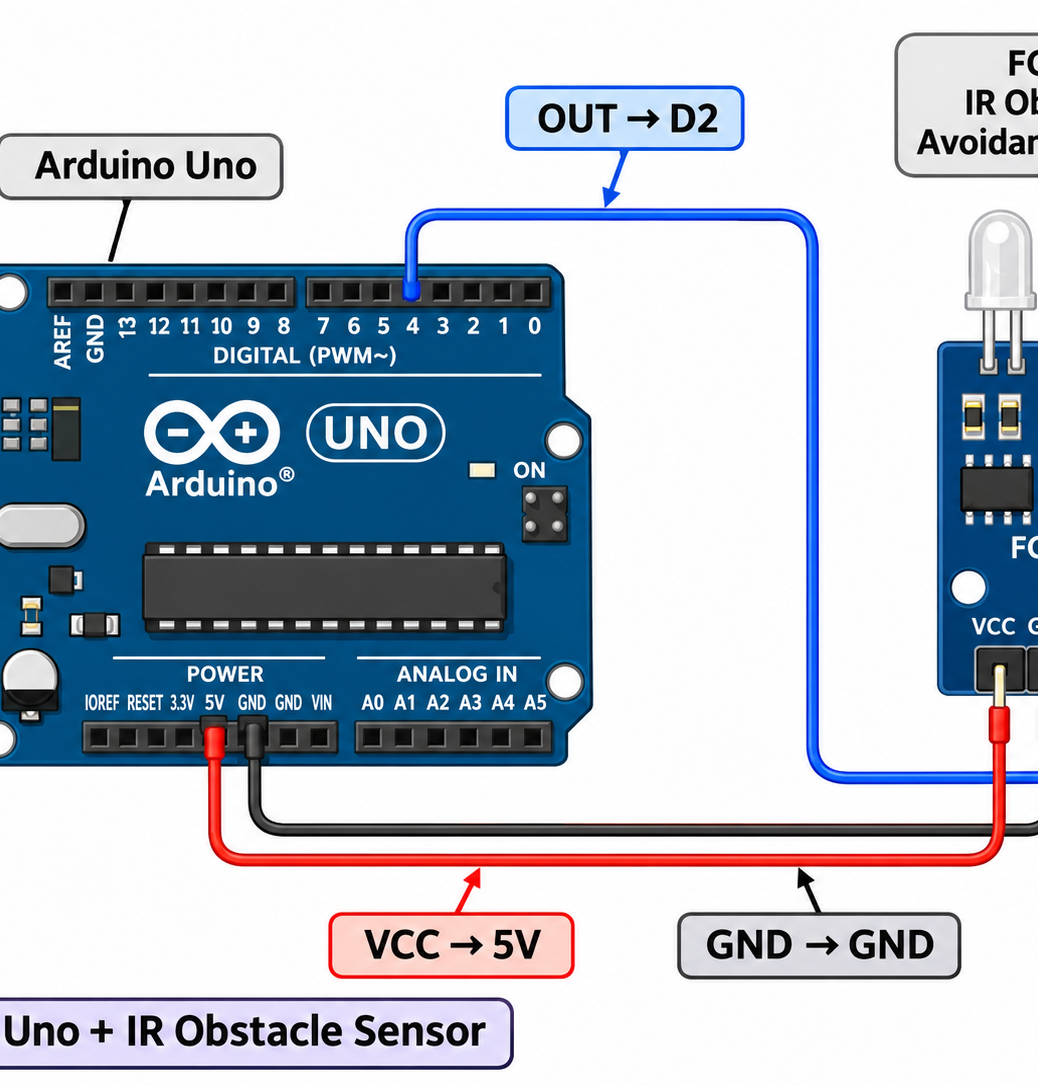
In this easy CircuitMagic tutorial you will build how to detect obstacles using arduino and fc-51 ir sensor using Arduino Uno and one simple sensor. The project needs only a few connections and a short Arduino IDE sketch.
What does the sensor do?
The FC-51 emits infrared light and measures reflected light. Its comparator gives a digital signal when an object is close enough. Bright sunlight and dark surfaces can affect results.
Required components
Arduino Uno, FC-51 sensor module, USB cable, three jumper wires.
Connection diagram
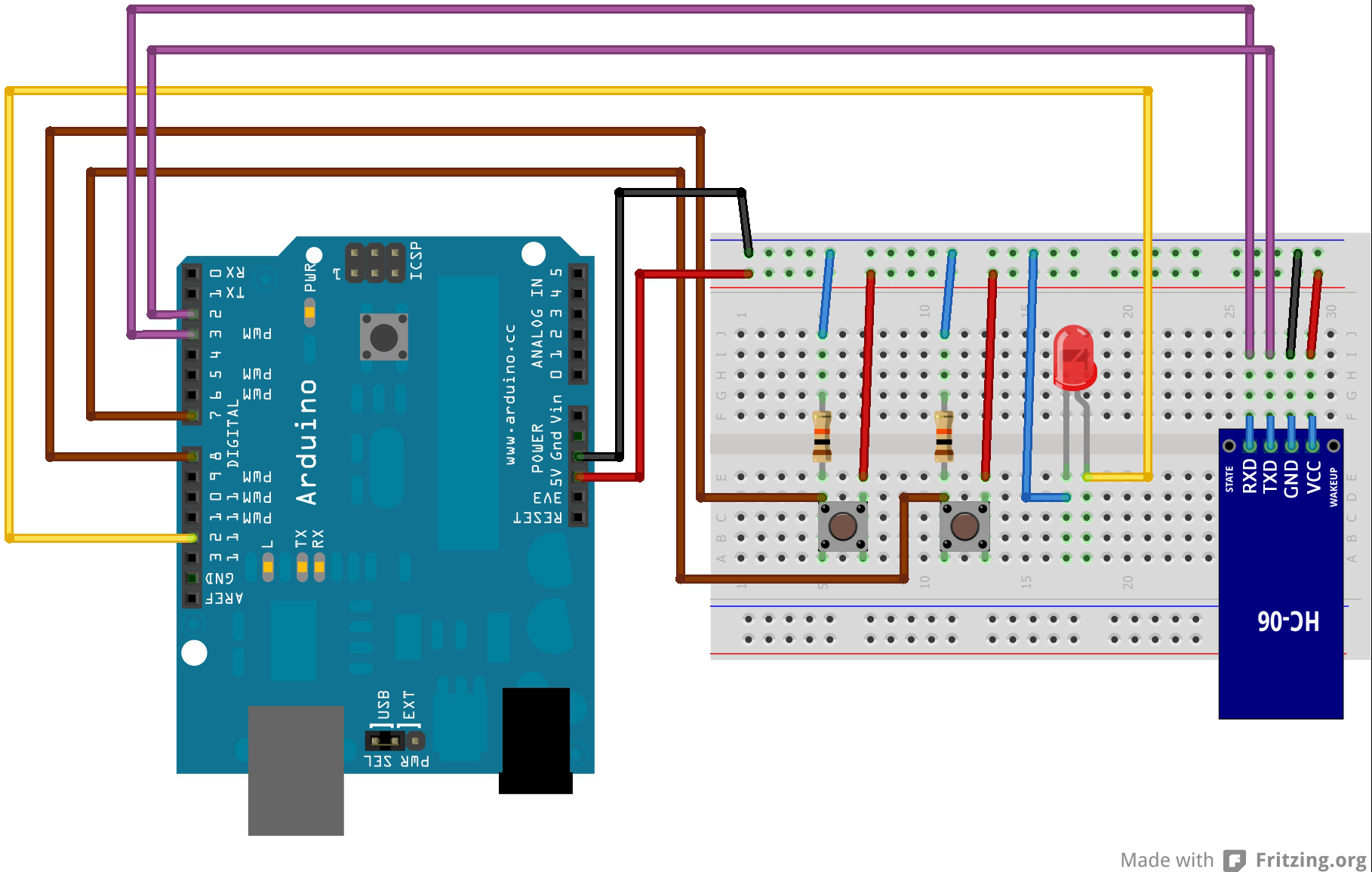
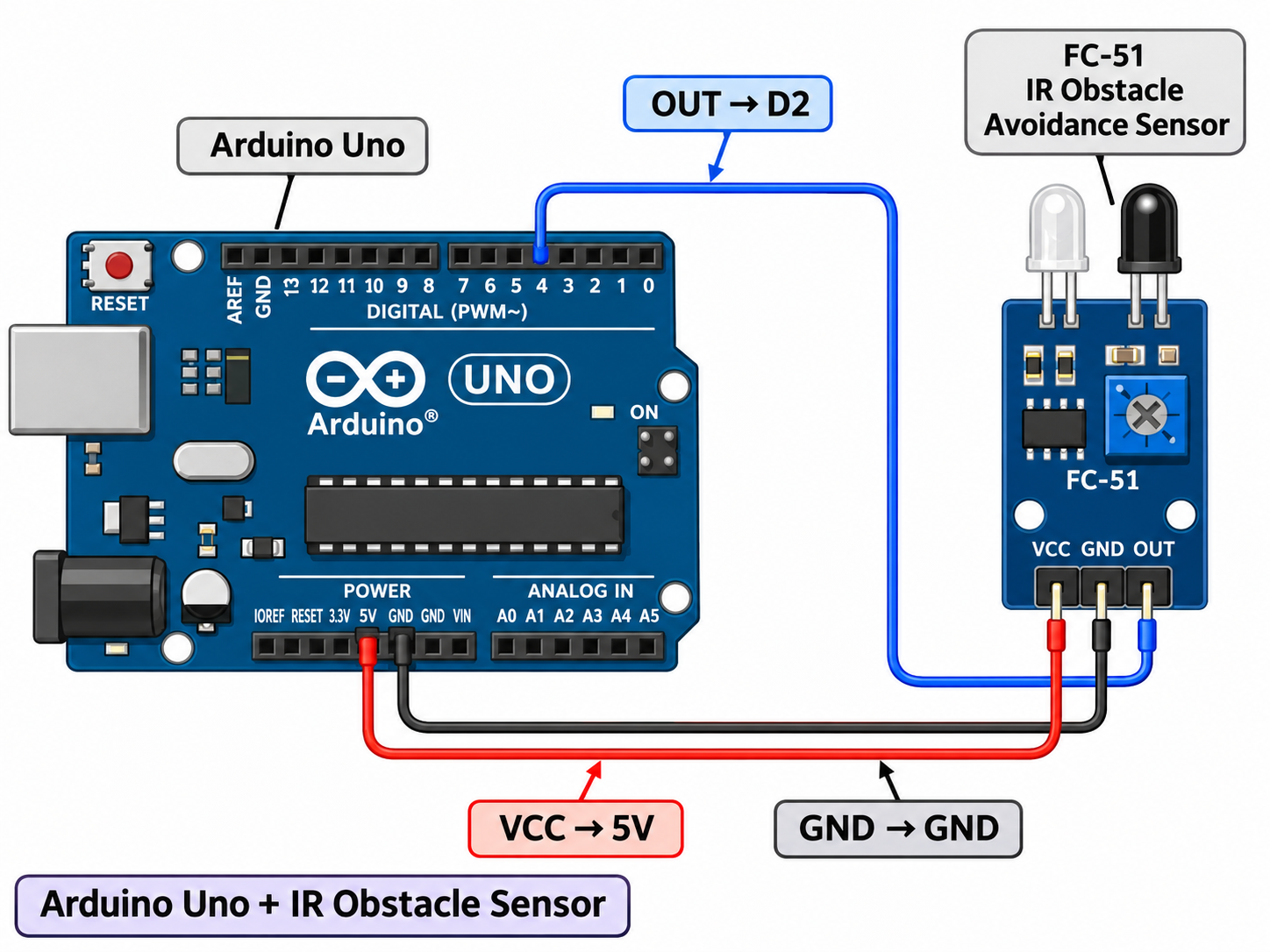
The diagram below is a pin-to-pin connection map: each colored line shows one separate wire between labeled terminals, not a photograph of a particular board’s header layout.
Pin connections
Unplug USB power before wiring. The pin table is authoritative; always verify your board’s printed pin labels and your module’s pinout.
| Arduino Uno pin / connection | FC-51 IR obstacle sensor connection |
|---|---|
| 5V | Sensor VCC |
| GND | Sensor GND |
| D2 | Sensor OUT |
Arduino IDE setup
No additional library needed. Select the matching board and serial port, then upload this sketch.
Complete Arduino code
const int sensorPin = 2;
void setup() {
  Serial.begin(9600);
  pinMode(sensorPin, INPUT);
}
void loop() {
  bool detected = digitalRead(sensorPin) == LOW;
  Serial.println(detected ? "Obstacle detected" : "Path clear");
  delay(200);
}
Expected output
Move your hand toward the two infrared components: Obstacle detected. Move away: Path clear. Open Serial Monitor at the baud rate specified by Serial.begin().
Troubleshooting
Many FC-51 modules output LOW on detection. Adjust the onboard potentiometer and invert the comparison if your module behaves differently.
If there is no output, double-check the board and port, USB data cable, common ground, sensor pin labels and Serial Monitor speed.
Try next
Once the basic example works, experiment with the sampling delay, add an LED indicator, or log the sensor output to a computer. See more CircuitMagic electronics projects for related beginner tutorials.